
Software Not Working on Client PC but Working on Server PC (Fix Guide)
If the software is working on the Server PC but not opening on the Client PC, the issue may occur due to one of the following reasons:
- The Server PC IP address has changed.
- The Windows Firewall is blocking the connection.
- The Antivirus is blocking LAN/network access.
- There is an issue in the local network configuration.
Follow the fixes below to resolve the issue.
Fix 1: Check and Correct the IP Address Binding
If the server IP address has changed, the software binding must be updated.
Steps
- Go to the Server PC.
- Search for Internet Information Services (IIS) Manager.
- Open it and click the dropdown arrow next to your Server Name on the top left.
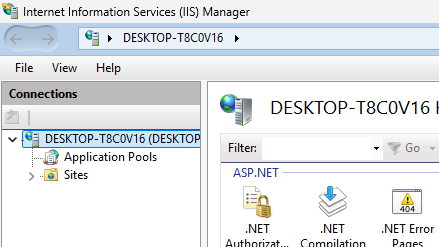
- Click the dropdown beside “Sites”.
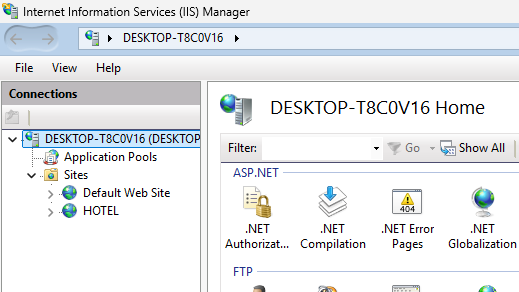
You will see a site according to your software type, for example:
- Hotel
- Hospital
- School
- Inventory
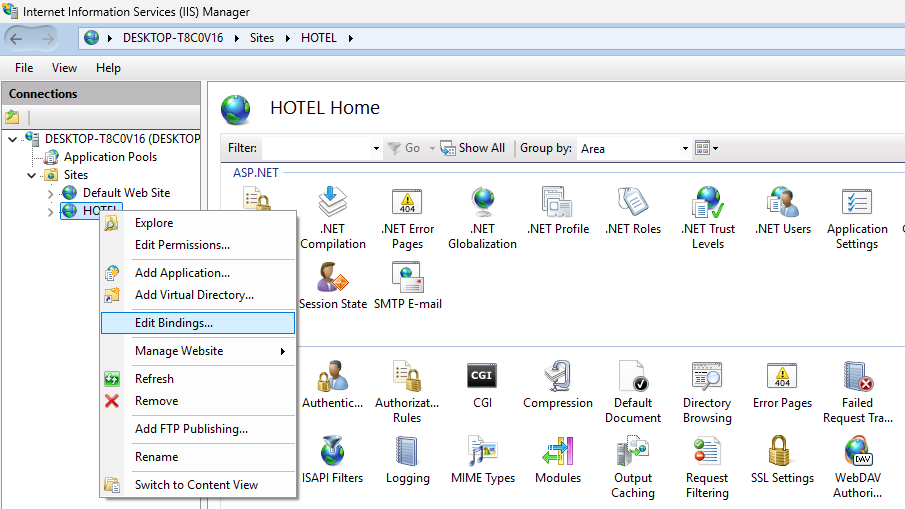
- Right-click on the site and select Edit Bindings.
A new popup window will appear.
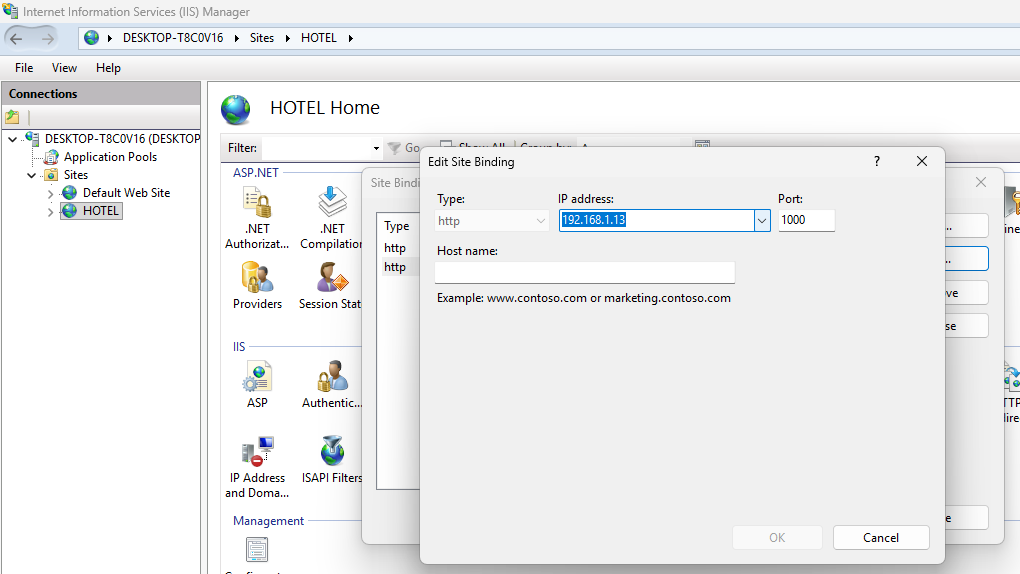
- Click on the row where the IP address is displayed (for example:
192.168.1.13).
- Click Edit.
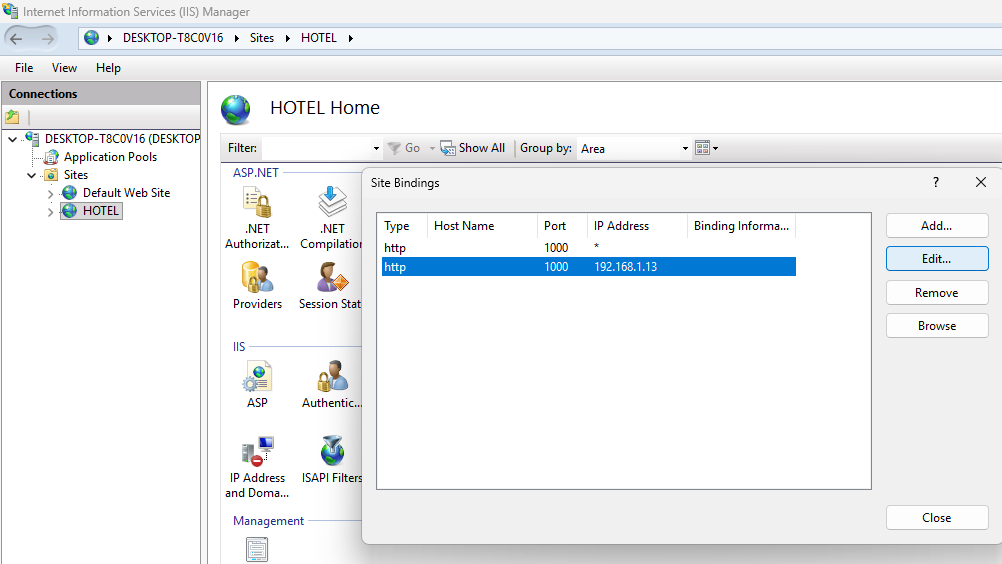
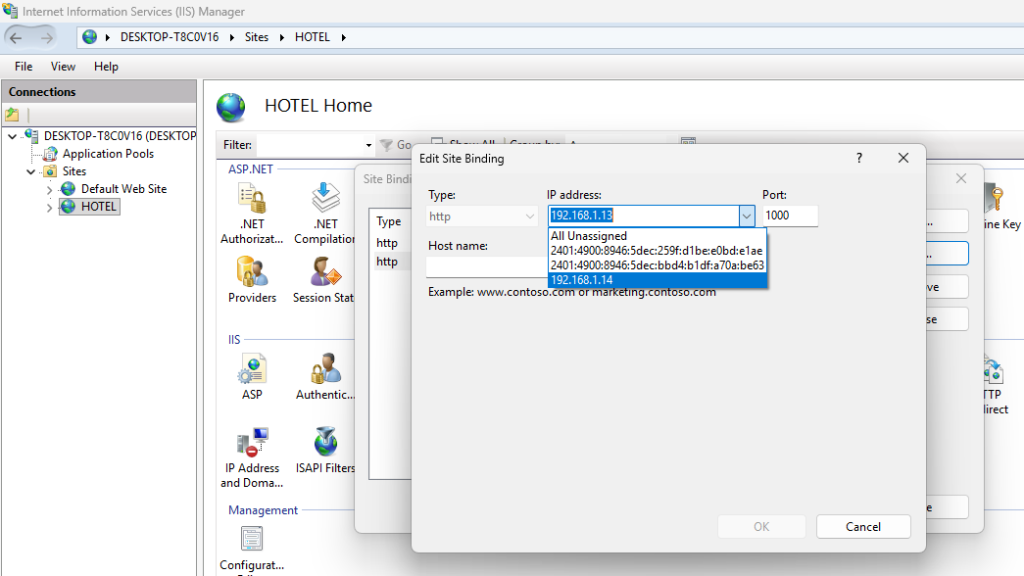
- From the IP Address dropdown, select the new IP address (if the IP has changed).
- If the IP has not changed, click Cancel.
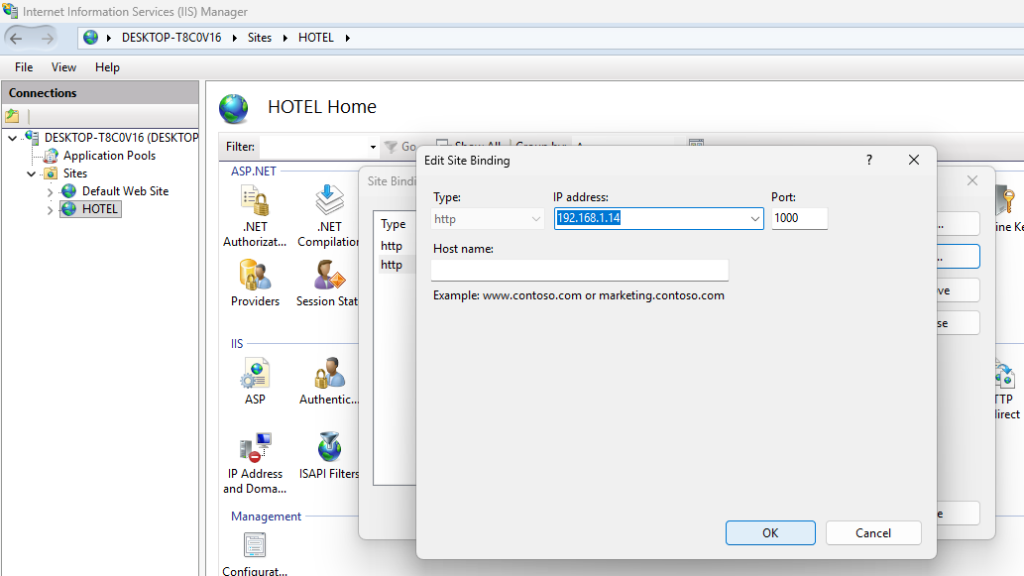
After Updating the IP
- Go to the Client PC.
- Delete the old shortcut of the software.
- Open a browser such as Chrome (recommended) or Brave.
- Enter the server IP address followed by :1000.
Example:
192.168.1.14:1000
- Press Enter.
- If the software opens, create a new shortcut for easy access.
Fix 2: Turn Off Windows Firewall (Server and Client PC)
Sometimes the firewall blocks communication between the server and client systems.
Steps
- Search for Windows Defender Firewall with Advanced Security.
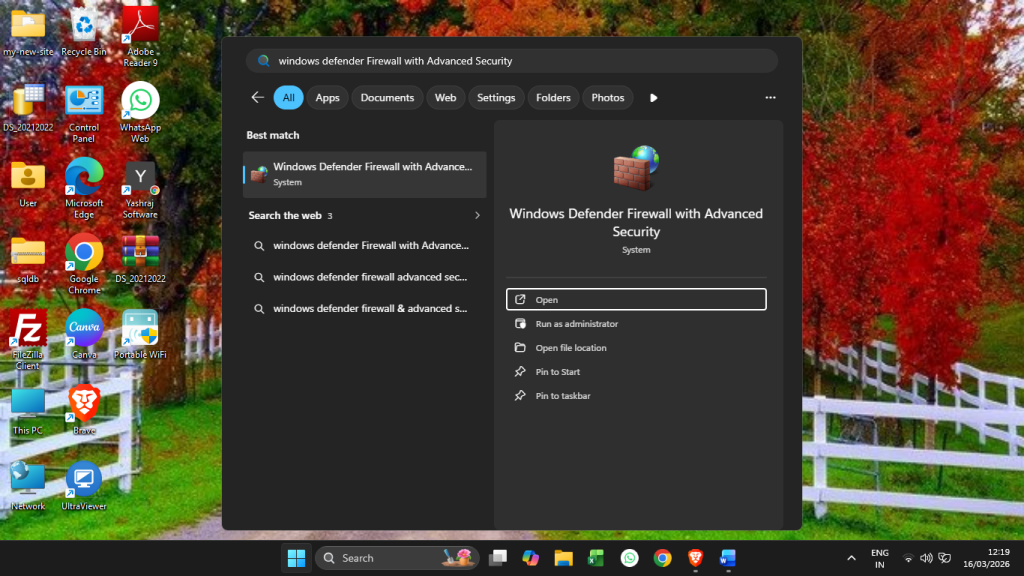
- Click on Windows Defender Firewall Properties.
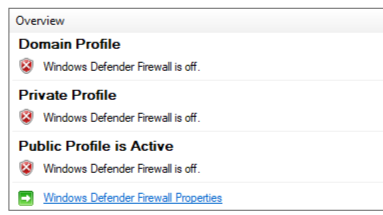
- Turn the Firewall State OFF for all three profiles:
- Domain Profile
- Private Profile
- Public Profile
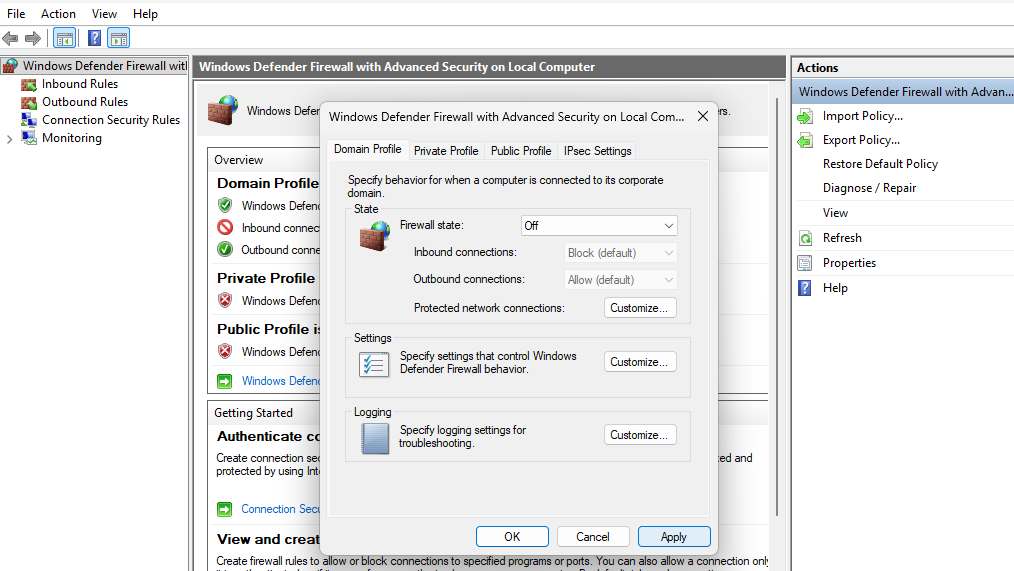
After disabling the firewall, check whether the software works on the Client PC.
Fix 3: Disable Antivirus Protection
If you are using third-party antivirus software, it may block LAN communication or application ports, which can prevent the software from opening on client systems.
Try temporarily disabling the antivirus on both the Server PC and Client PC, and then check if the software starts working.
Note:
Modern versions of Windows include built-in protection such as Microsoft Defender, which already provides strong security for most users. In some cases, third-party antivirus software can slow down system performance because it continuously scans files, network traffic, and running processes.
Research and performance testing by independent labs such as AV-TEST and AV-Comparatives has shown that antivirus software can impact system speed depending on how aggressively it scans files and background processes.
Sources:
https://www.av-test.org
https://www.av-comparatives.org
After disabling the antivirus, check if the software works on the Client PC.
Fix 4: Check Local Network Configuration
If none of the above fixes solve the issue, the problem may be related to the local network setup.
Contact your network administrator or networking partner and inform them that:
- The Client PC must be able to ping the Server IP.
- The Server must respond to the Client PC over the local network.
Need Help?
If you still face issues after following the above steps, please contact our support team for further assistance.